
Importing Custom Assets
With Railyard, you can import custom assets to be managed via Railyard. This can allow you to test assets or play assets that aren't available on Railyard.
Note
As of v0.2.1, this feature only works for maps. For mods, you can place them in the metro-maker4/mods folder as you normally would, and test them that way. Support for importing and managing local mods via Railyard will be added in a future release.
Importing Assets#
To import a custom asset, first navigate to the Library page via the navbar. Then, click the "Import Asset" button in the top right corner. Once you select this option, you will be prompted to select the archive of the asset you are trying to import.
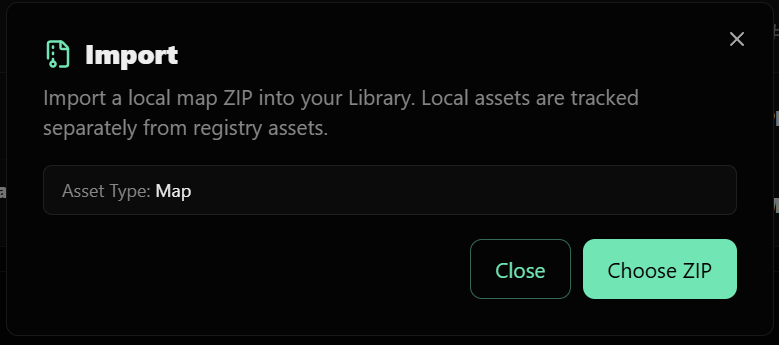
After you select the asset archive, Railyard will attempt to import the asset. If the import is successful, the asset will be added to your library and you will be able to manage it like any other asset on Railyard. If the import fails, an error message will be displayed indicating what went wrong.
Danger
If you attempt to import a map with the same city code as a map that you already have installed, you will see a popup letting you choose whether to replace the existing map or cancel the import.
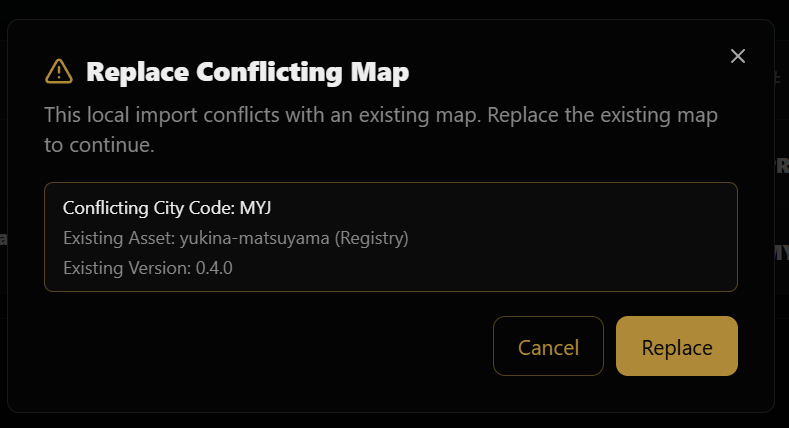
You cannot have two maps with the same city code installed at the same time. If you are importing a map that you have created, change the city code to something unique. If you are importing a map that you downloaded from somewhere, try contacting the creator to change the code.